Manage the customer profile with BitzButler
Struggling to stay organized? See how this CRM helps!
Ready to simplify?
Table of contents
Overview
A customer is your contact and every customer has their profile with you. Basically, the customer profile serves two main purposes: billing and building relationships. For the billing process, you need the customer full contact for you to bill the customer and after sale service. For relationships, you may track their preferences or birth date. This allows you to give extra service and surprise to cheer them up.
In BitzButler, we call it Customer Relationship Management (CRM) and it assists you in enhancing the relationship between your customer and your business. As a result, a better service can be provided to your customer to improve your income.
FAQ
Q: Why do we have to keep the customer contact information?
A: There are three main purposes in keeping track the customer information:
- For billing process - you need the customer's full contact for you to bill the customer and after sale service.
- For maintaining a good relationship - you may track their preferences, birth date, etc. This allows you to give extra service and any surprise to cheer them up.
- Future promotion - that information will be useful for running any future promotion and follow-up.
Q: Is it important to keep track the customer information?
A: Yes. It allows you to provide a better service and meet the customer's expectations without the customer reminding you about their preferences.
BitzButler Customer Profile
There are two ways to maintain a customer profile:
- Using the mobile view on a mobile phone.
- Using the desktop view on a computer or tablet.
Both ways are easy but the desktop view is showing more information about the customer.
Customer Profile on Mobile View
Add new customer on mobile view
-
Tap "CONTACT".
-
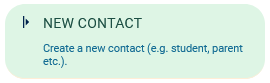
Tap "New Contact".
-
Fill in all the compulsory fields.
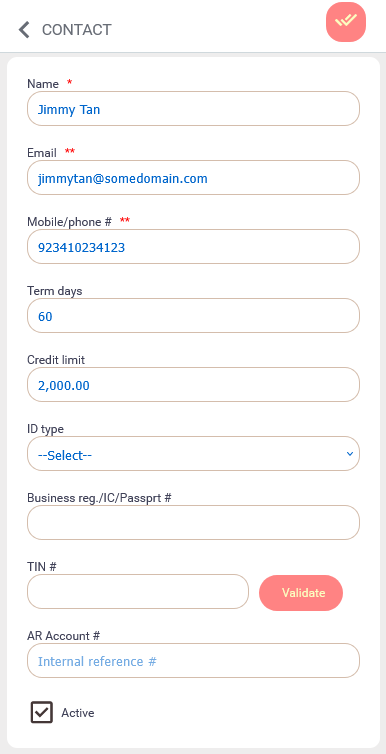
Notes: either email address or mobile phone number must have value.
The customer address is optional. Tap on it to expand the fields.
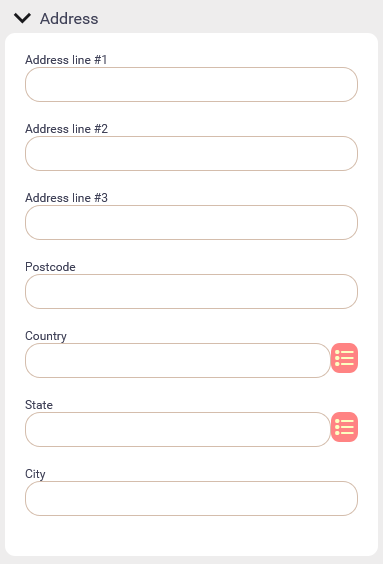
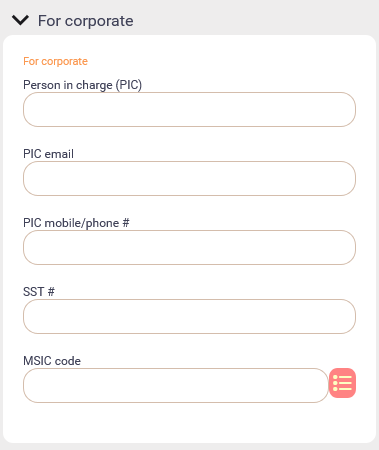
For the corporate customer, you may have to fill in the person in charge and their corporate information.
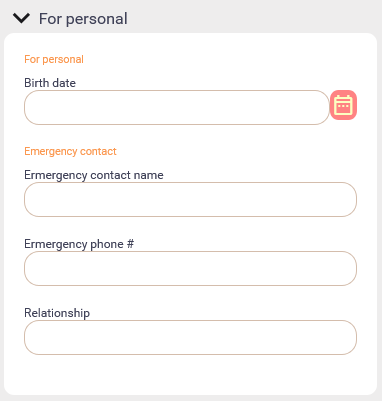
For an individual customer (like a student who is attending classes), you may want to keep track of their emergency contact.
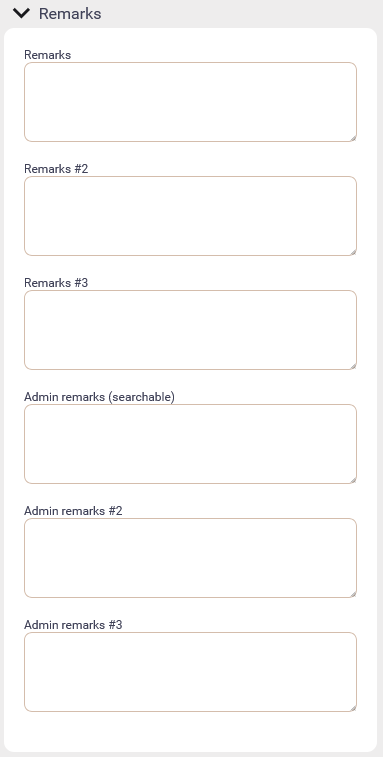
The last section will be the remarks and we have 6 remarks fields:
-
Click on the Save option (located at the top right).
Edit a customer profile on mobile view
-
Tap "CONTACT".
-
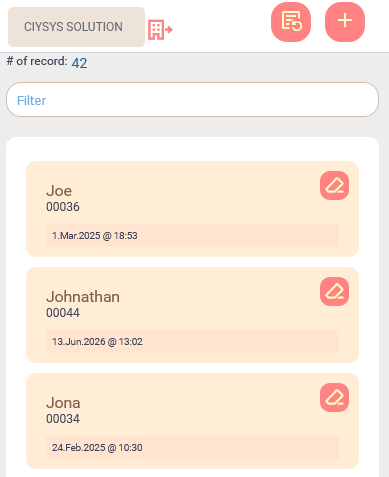
Tap "Manage contact" and the following screen will appear.
-
You may filter the records by entering partial names, mobile number or email address.
-
Tap on the refresh option (located next to the add option at the top right).
-
Tap on the edit icon (located at the top right of a contact) and then start editing their details.
Delete a customer profile on mobile view
-
Tap "CONTACT".
-
Tap "Manage contact" and the following screen will appear.
-
You may filter the records by entering partial names, mobile number or email address.
-
Tap on the refresh option (located next to the add option at the top right).
-
Tap on the edit icon (located at the top right of a contact) and then start editing their details.
-
Tap on the More Option icon (the icon with three vertical dots)
-
Tap Delete option.
There are two possibilities on the outcome:
- If the customer does not have any sales invoices, then the customer profile will be deleted from the database.
- If the customer already has some transactions (like sales invoices, sign-up, etc), the system will prompt "Deletion is not allowed because the record is in use". In this case, you have to untick the "Active" checkbox and Save the customer profile. This customer will become hidden and you will not be able to find this customer upon issuing invoice, sign up for a new course or classes.
Customer Profile on Desktop View
-
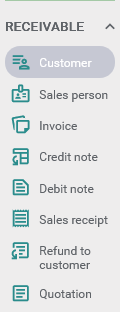
Open the Accounting app by tapping on Advanced → Accounting.
-
Click Receivable.
-
Click Customer.
Add new customer on desktop view
-
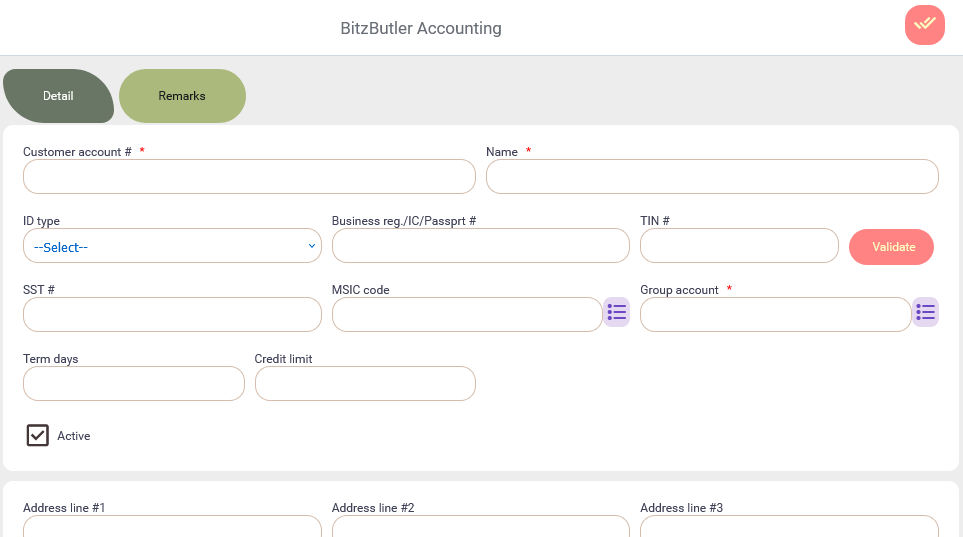
Click Add option (located at the top right).
-
Fill in all the compulsory fields.
-
Click Save (located at the top right).
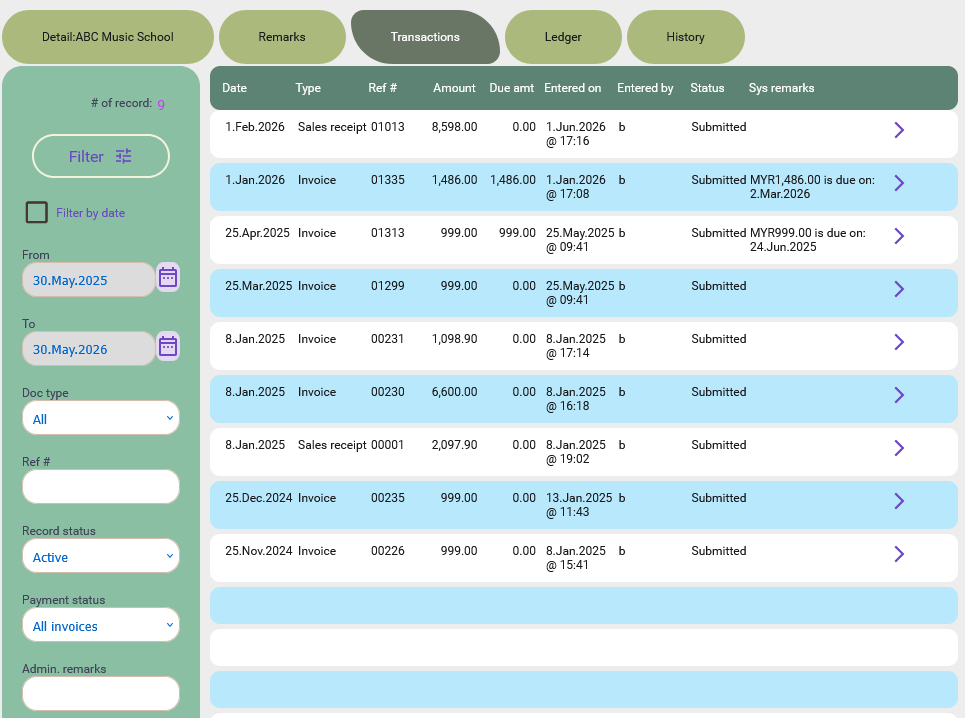
After the customer profile has been saved, new tabs will appear on the screen.
-
In the Transactions tab, you will find all their invoices, sales receipts, etc. Double click on any row will open the document/transaction.
-
In The Ledger tab, it shows the open balance (if any) and the transactions for the selected period. It has the debit and credit columns which is from the accountant perspective.
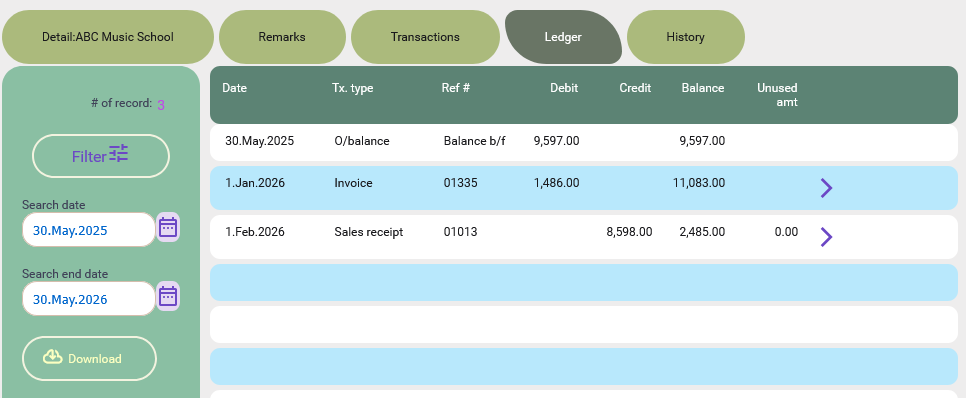
Notes: click on the Download option on the filter box to download the ledger.
-
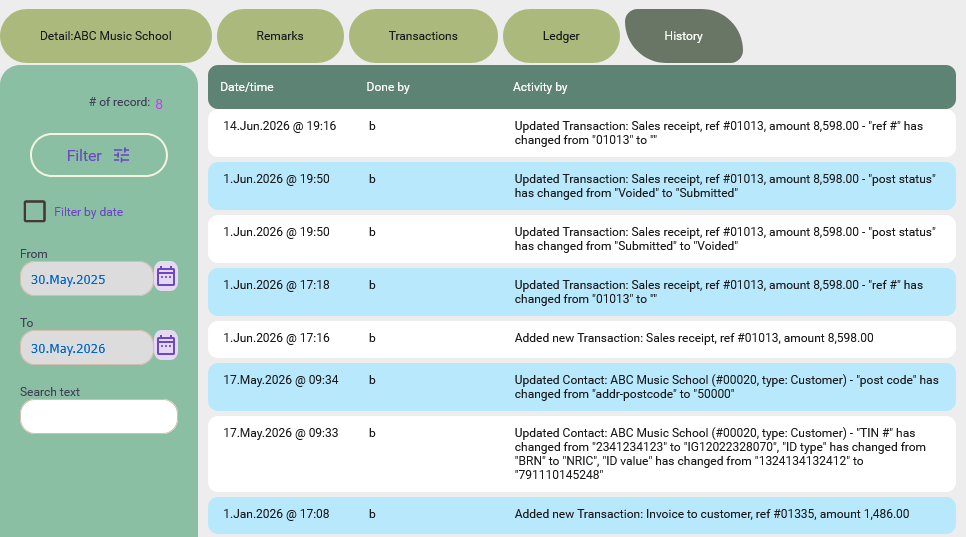
In the History tab, it has all the information about when the customer and their transaction was edited.
-
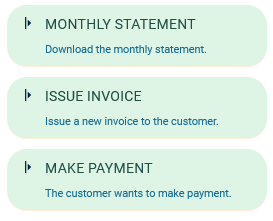
Click on the More options (located at the top right), you will find the extra hidden features there:
Edit a customer profile on desktop view
-
Double click on any row to edit the customer OR click on the right arrow on any row.
-
Edit the necessary fields.
-
Click Save (located at the top right).
Delete a customer profile on desktop view
-
Double click on any row to edit the customer OR click on the right arrow on any row.
-
Untick the "Active" checkbox
-
Click Save (located at the top right).
After that, this customer will become hidden and you will not be able to find this customer upon issuing invoice, sign up for a new course or classes.
Summary
BitzButler CRM is a tool that helps you in assisting you to enhance the relationship between your business and your customer. The customer data that you have collected is going to be helpful for their successf. Unfortunately, most of the small businesses either overlook on this business activity or don't want to spend time in tracking the customer preferences.
Start keeping track of your customer information for Free. No credit card needed to sign up.
#Tutorial | #CRM | #AR | #Accounting | #Blog listing
