How BitzButler Sales Receipt lets you issue sales receipts in under a minute
Say bye to paper chaos, old-school receipt books, and manual headaches! Hop on our system ride for a smoother biz and teaching flow (be pro a bit go paperless lah 😆). Let's goooooo!! 🥳
Ready to simplify?
Table of contents
-
What are the benefits of using a computerised Sales Receipt system?
-
- Q: When to send a sales receipt?
- Q: Where to access the sales receipt?
- Q: Who issues the sales receipt?
- Q: I don’t have any accounting experience or knowledge, will I be able to issue an Sales Receipt?
- Q: Can I export an sales receipt in PDF format?
- Q: Can I send an sales receipt through Whatsapp or any other messenger?
- Q: Is there a way to find out the due invoices?
- Q: Do you have any collection reports?
📝 Key Takeaways
-
Timer Saver - BitzButler is designed to speed up every data entry and reporting. ⏰
-
Prompt Service - the customer feel happy when they received your sales receipt promptly.😎
-
Avoid Miscalculation - key in once and spend your time on other works.😮💨
-
Stay Tax-Ready - avoid year-end stress with organized, real-time records.💪
-
No Accounting knowledge Needed - BitzButler is designed for owners, not just bookkeepers.🍰
-
Instant Setup - move from messy sales receipt in spreadsheet to a clean dashboard in minutes.🎉
Overview
Our software allows users to issue sales receipts from mobile devices or desktop computers.
Sales Receipts: Your Studio’s Quick Proof of Payment
A sales receipt is your "thank you" note after a customer pays on the spot—whether it's cash or bank transfer. A sales receipt records the transaction — listing what was bought, amount paid, date, and your studio/business details. It builds trust, helps with taxes, and keeps customers happy with immediate proof. In the BitzButler Sales Receipt app, creating one is as simple as snapping a photo—mobile-friendly, branded, and shareable in minutes, so you can get back to teaching without paperwork or manual receipts piling up.
Why issue a sales receipt from your phone?
Instant proof works like a charm — no more “Did I pay last month?” texts from customers. Send a quick receipt right after cash or bank transfer: less confusion, more trust, clean books. Takes under 5 minutes on your phone — no printer, no stress. Customers get it instantly, you get back to teaching. Done.
What are the benefits of using a computerised Sales Receipt system?
- Easily track the due invoices - no more forget to ask the payment from the customer — so you can focus on teaching with ease instead of stressing over cash flow.
- No formula - it automatically calculates the amount due by any customer, reduces mistakes and saves saving valuable time.
- The world is moving very fast - from the customer point of view, a fast response means you care about the business that they gave you. Nowadays, the world is moving very fast and most of the customers do not have patience to wait. This is due to the convenience of the mobile apps that are available on their mobile phones.
- Eco-friendly - no more paper trail and only PDF files - it is eco-friendly!
- Audit trail - any changes have an audit trail. This is a very important feature as compared to the manual process. This is critical in the sense of security and compliance.
With BitzButler Sales Receipt, it certainly helps in improving your company image such that the customer feels comfortable working with you.
FAQ
Q: When to send a sales receipt?
A: Here is some of the timing for issuing a sales receipt.
- Right after payment — cash for ballet accessories, bank transfer for class fees, service or product sale, etc.
- At pickup — customer hands over tuition in person? Receipt done before they leave.
- During class breaks — quick sale of music theory books? Tap and go.
- End of day sweep — batch all front-desk cash sales in one quick receipt (admins love this - no more scribbling on paper, counting cash twice, or fixing mistakes later — just tap, done, and everything’s in the system clean and ready for tomorrow!).
- Checking bank transfer notifications — upon receiving the payment transfer notification, issue a sales receipt and send it to the customer. In case you have many payment transfers during a day, you might want to do it on an hourly basis.
Q: Where to access the sales receipt?
A: There are two ways in BitzButler to access the same function:
-
For mobile phone user:
- Open the app → Dashboard → Collection tab.
- Tap on a Contact → tap on More Options (located at the top right) → choose Make Payment option.
-
For desktop computer user:
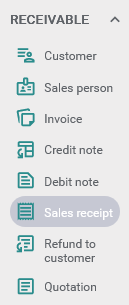
- Open the Accounting app → click Receivable → click Sales Receipt.
Q: Who issues the sales receipt?
A: Front-desk admins / owners / instructors = Everyone wins: no paper, no mix-ups, just tap → send → done.
Q: I don’t have any accounting experience or knowledge, will I be able to issue an Sales Receipt?
A: Yes. You may start using our BitzButler Sales Receipt with minimal or no accounting knowledge as long as you know how much your customer has paid. Upon saving the Sales Receipt, the system will process the collected amount by posting it to the correct account and update the Balance Sheet in real-time. You won't notice their existence.
The best thing is that no formula is required to set up like those who are using a spreadsheet.
Q: Can I export an sales receipt in PDF format?
A: Yes. First, you open the Collection entry that you want to send. Choose 'Export to PDF' option from the more option menu (located at the top right). Then, the sales receipt in PDF will appear on the screen.
Q: Can I send an sales receipt through Whatsapp or any other messenger?
A: Yes. The PDF reader on your mobile device has a "forward" option/icon. Tap on it, choose the app that you want to use and then tap on the Send option.
Q: Is there a way to find out the due invoices?
A: Yes. Please refer to the following articles:
- Stay on top of cash flow: invoice payment tracking in BitzButler Accounting
- BitzButler - a quick guide to invoicing / how to issue invoices with ease
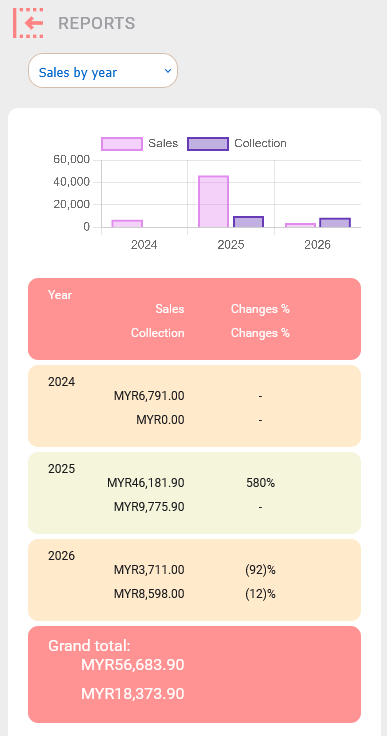
Q: Do you have any collection reports?
A: Yes. We have collection reports.
-
For mobile phone user:
-
Tap on Reports option.
-
Choose any of the following view which contains the total sales and collection:
- Sales by year.
- Sales by month.
-
-
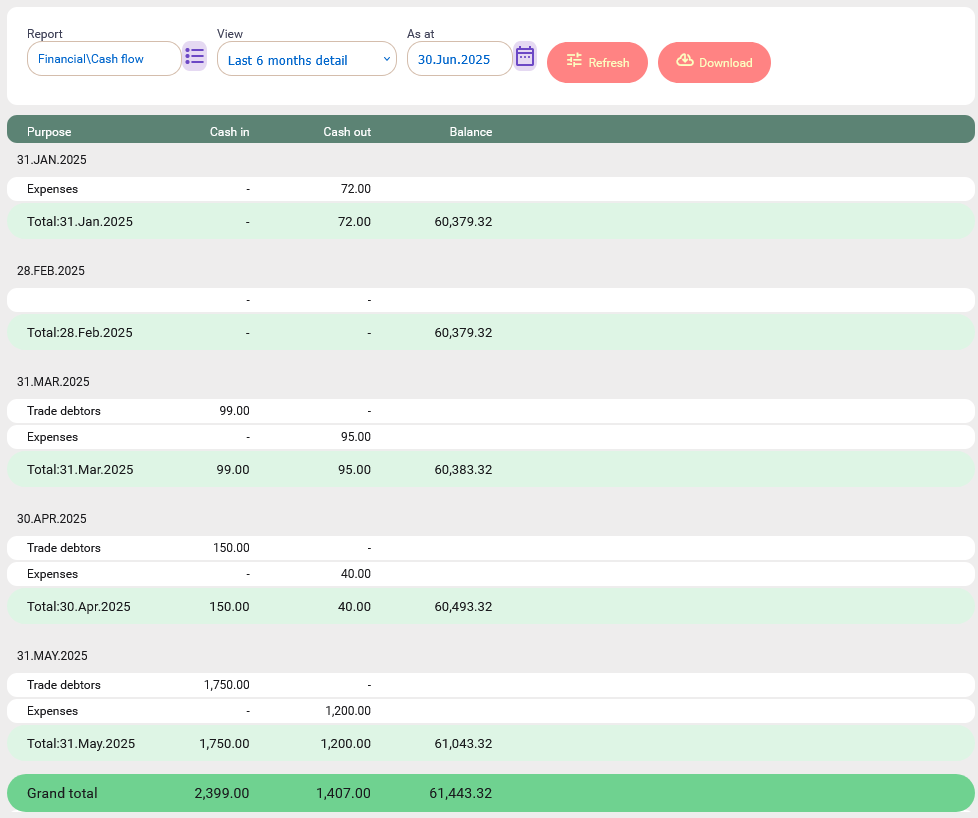
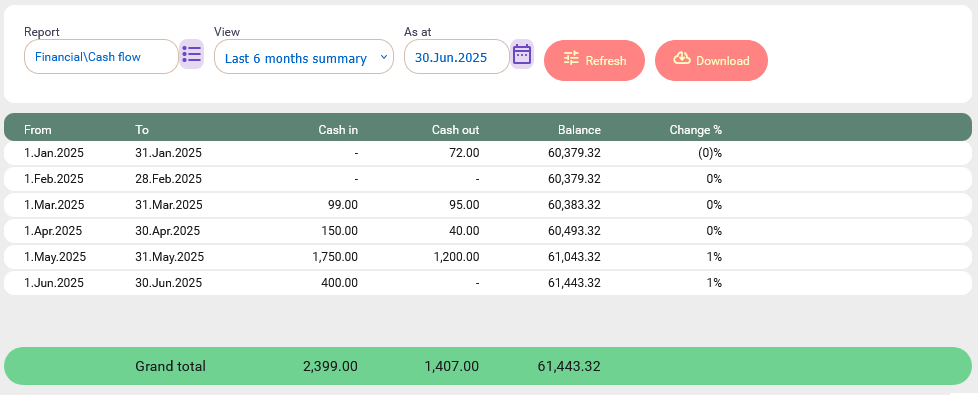
For desktop computer user - open the Accounting app → choose Reports from the main menu. Then, choose any of the following reports:
-
Financial\cash flow\Last 6 months detail - shows the cash in and cash out for the last 6 months in detail grouping.
-
Financial\cash flow\Last 6 months summary - shows the cash in and cash out for the last 6 months in summary.
-
Notes: unfortunately, the cash flow reports are not available for the mobile phone users.
BitzButler Sales Receipt
Issuing Sales Receipt using BitzButler Sales Receipt is straight forward.
How to issue a Sales Receipt on a mobile phone
-
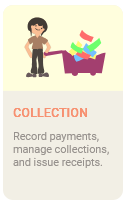
Tap "COLLECTION".
-
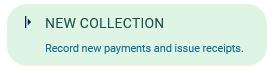
Tap "New Collection".
-
Select the customer's name, payment type, and enter the amount received.
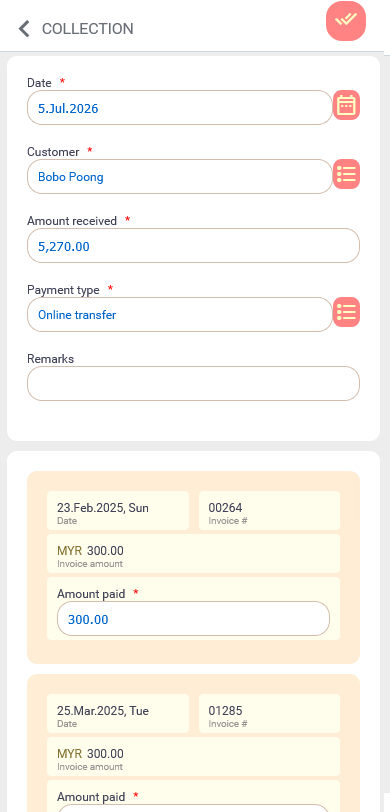
Notes: after you have keyed in the collected amount, tap on the Remarks field and the system will automatically knock off the due invoices.
-
Click on the Save option (located at the top right).
How to issue an Sales Receipt on desktop computer
The invoice entry in the BitzButler Accounting module is an advanced entry screen which has more fields and more information.
-
Open the Accounting app by tapping on Advanced → Accounting.
-
Click Receivable.
-
Click Sales Receipt.
-
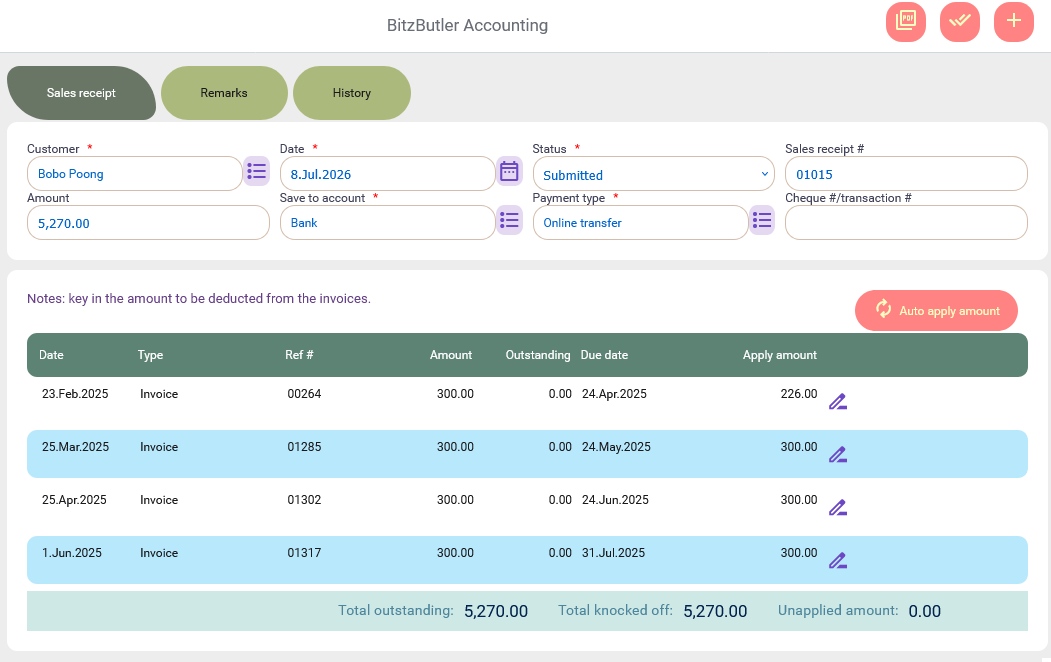
Choose a customer and then the due invoices will appear on the screen.
-
Key in the date, amount, etc to complete the collection information. After you have keyed in the amount, click on any other field and the system will automatically apply the collected amount to the due invoices.
-
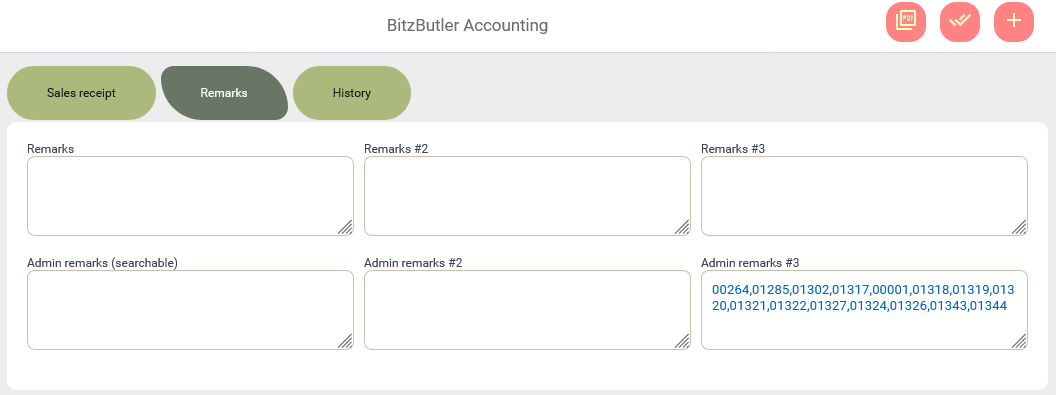
Switch to the Remarks tab. There are 6 remarks fields on this screen and you may have to decide the purpose of the remarks field. No hard rule.
In the 'Admin remarks #3' field, it shows the invoice number that was settled by this payment and it is automatically done by the system.
-
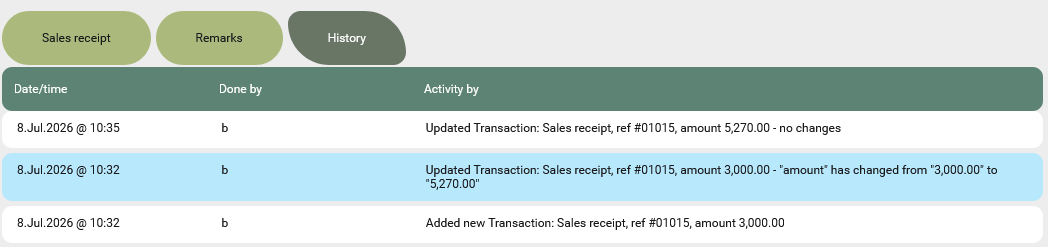
Click Save option (located at the top right) once you have done with the data entry. Then, the History tab will appear after successfully saving the data.
In the History tab, it has all the information about when the Sales Receipt was issued and the changes made on this Sales Receipt.
-
Click on the PDF icon (located at the top right) to generate the Sales Receipt in PDF format.
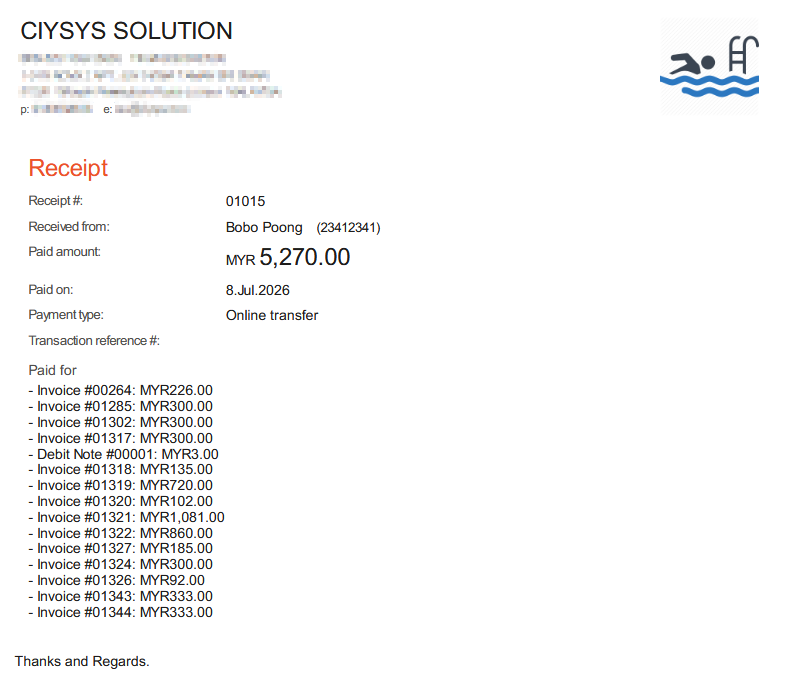
Notes: you may change the business logo by: tapping on Advanced → My business profile → Business logo.
Summary
BitzButler makes issuing sales receipts easy and efficient with less errors. On the other hand, it is easier to track the due invoices.
Our system supports both mobile phone and desktop computer and each version serves different user group. The former is designed for mobile user and the later is designed for those who can access a computer.
Start issuing your Sales Receipts for Free. No credit card needed to sign up.
#Tutorial | #CRM | #AR | #Blog listing
