BitzButler - a quick guide to invoicing / how to issue invoices with ease
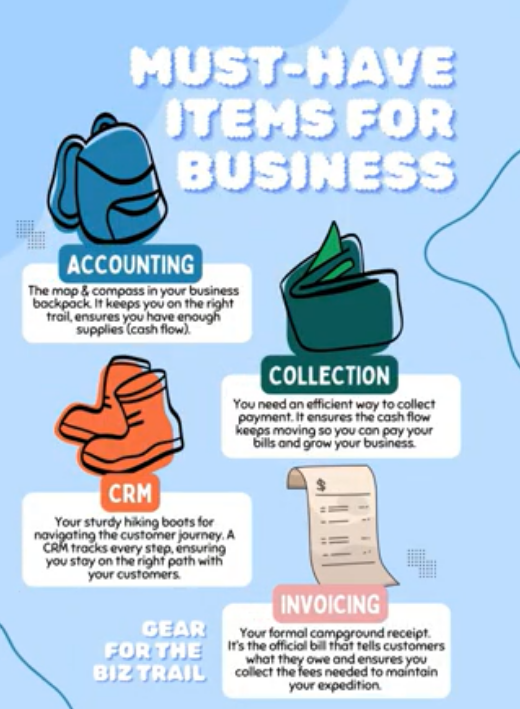
Small biz? No prob! Swap paper for digital and grow easy-peasy! 🌱😎
Ready to simplify?
Table of contents
-
- Q: When to send an invoice?
- Q: Who should issue the invoice?
- Q: I don’t have any accounting experience or knowledge, will I be able to issue an Invoice?
- Q: How many types of invoice that your system can handle?
- Q: How many ways to issue an invoice in BitzButler?
- Q: Does your invoice has special fields to track the servicing period?
- Q: Can I export an invoice in PDF format?
- Q: Can I send an invoice through Whatsapp or any other messenger?
- Q: Can I duplicate an invoice?
- Q: Can I issue LHDN e-invoice?
- Q: Does your system track overdue invoices?
- Q: Does your system tracking the payment on the invoice?
- Q: Do you have any sales reports?
- Q: Does your system has any report to show the overdue invoice?
📝 Key Takeaways
-
Timer Saver - BitzButler is designed to speed up every data entry and reporting. ⏰
-
Prompt Service - the customer feel happy when they received your invoice promptly.😎
-
Avoid Miscalculation - key in once and spend your time on other works.😮💨
-
Stay Tax-Ready - avoid year-end stress with organized, real-time records.💪
-
No Accounting knowledge Needed - BitzButler is designed for owners, not just bookkeepers.🍰
-
Instant Setup - move from messy invoice in spreadsheet to a clean dashboard in minutes.🎉
Overview
Our software is capable of issuing invoices on mobile devices and computer desktops.
Invoicing on the go for steady cash flow
An invoice is your payment summary for every ballet class, piano lesson, or recital package—spelling out dates, rates, hours, fees, and due dates. It’s the polite yet firm nudge for payment while protecting you if a customer disputes a charge. In our BitzButler Invoice app, invoicing feels like texting: fast, studio-branded, and customer-friendly.
Why bill on mobile? (Phone or tablet)
You’re busy teaching, not glued to a desk. When a customer stops you after class — “Can Emma do extra rehearsals?” — just pull out your phone. A few taps and the invoice is sent before you even turn off the studio lights.
Customers like paying instantly with bank transfer or card — no checks, no fuss. You get “paid!” ping on your phone right away.
What is the benefits of using an Invoicing system?
- Get paid days faster - no more chasing late payments or hearing “I forgot.” Studios that bill on mobile get paid days faster — so you can focus on teaching with ease instead of stressing over cash flow.
- No formula - it automatically calculates the amount by multiplying the quantity and unit price, tracks the payment, reduces mistakes means saving valuable time.
- The world is moving very fast - from the customer point of view, a fast response means you care about the business that they gave you. Nowadays, the world is moving very fast and most of the customers do not have patience to wait. This is due to the convenience of the mobile apps that are available on their mobile phones.
- Legal and tax submission - it also simplifies the requirements of legal and tax submission. Just a few clicks and the system will generate the Profit & Loss and Balance Sheet for you. Helping you in avoiding fines.
- Eco-friendly - no more paper trail and only PDF files - it is eco-friendly!
- Audit trail - any changes have an audit trail. This is a very important feature as compared to the manual invoicing process. This is critical in the sense of security and compliance.
With BitzButler Invoice, it certainly helps in improving your company image such that the customer feels comfortable working with you.
FAQ
Q: When to send an invoice?
A: Timing is important and a late invoice could mean that the customer might have forgotten about the service that they have consumed. Here's are some of the right timing for issuing invoice:
- Right after a trial class or replacement class.
- Monthly for regular students.
- Term-end for recital fees or elite training programs.
- Anytime a customer texts “Can you invoice me?”.
- A service job has been completed.
- Upon the customer placing the order.
Q: Who should issue the invoice?
A: For any small businesses, the following personnel might have to take care the invoicing process:
- Studio owners/admins - daily or trial classes etc.
- Instructors – quick bills for regular coaching or extra classes etc.
- Small business owners and freelancers.
- Project manager - invoice the customer upon job completion.
- For sales executives - invoice the customer upon placing their order.
Q: I don’t have any accounting experience or knowledge, will I be able to issue an Invoice?
A: Yes. You may start using our BitzButler Invoice with minimal or no accounting knowledge as long as you know what service or product the customer has consumed or any class that they have attended. Upon saving the Invoice, the system will process the collected amount by posting it to the correct account, update the Profit & Loss and Balance Sheet in real-time. You won't notice their existence.
The best thing is that no formula is required to set up like those who are using a spreadsheet.
Q: How many types of invoice that your system can handle?
A: BitzButler Invoice can handle the following types of invoice:
- Invoice on product - invoice on the product/merchandise sold to the customer. The product can be an inventoried item or non-inventoried item.
- Invoice on service - invoice on the service that has been rendered such as graphic design job, programming job, freelance lecture class, freelance dance teaching, rental, etc.
Q: How many ways to issue an invoice in BitzButler?
A: There are many ways to issue an invoice in BitzButler.
-
Tap on Invoice option and then tap New Invoice.
-
Tap on the Contacts, tap on any customer, choose Issue Invoice option from the More options (located at the top right).
-
For those who has enabled the course and class session feature:
-
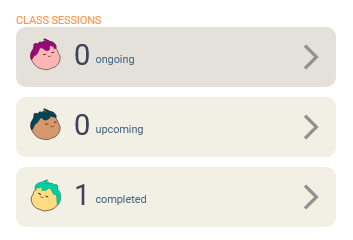
Tap on the class session box, tap on the Advanced search icon to filter the records, choose Issue Invoice option from the More options (located at the top right).
-
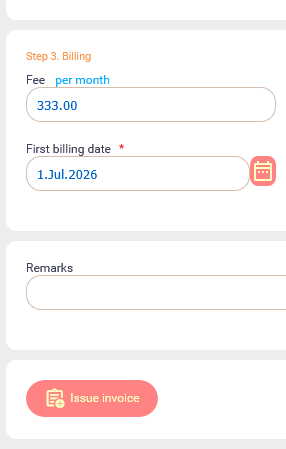
Tap on the Sign-up box, choose Manage Sign-up.
Open any sign-up, scroll to the bottom and tap on Issue Invoice option.
-
-
You will be able to issue invoices from the BitzButler Accounting module as well but this module requires a bigger screen to work (i.e., it won't work properly on any mobile phone screeen). To navigate to the BitzButler Accounting module, tap on the Advanced box. → Accounting. After that,
- Tap on the Invoice → tap '+' icon (located at the top right).
- Tap on the Customer → tap on the customer that you want to bill → tap on the More options (located at the top right) → choose Issue Invoice option.
Notes: the invoice entry in the BitzButler Accounting module is an advanced entry screen which has more fields and more information.
Q: Does your invoice has special fields to track the servicing period?
A: Yes. For example, if you are teaching ballet classes and you want to bill your student, you will have to issue a new invoice, choose the course and then key in the servicing period.
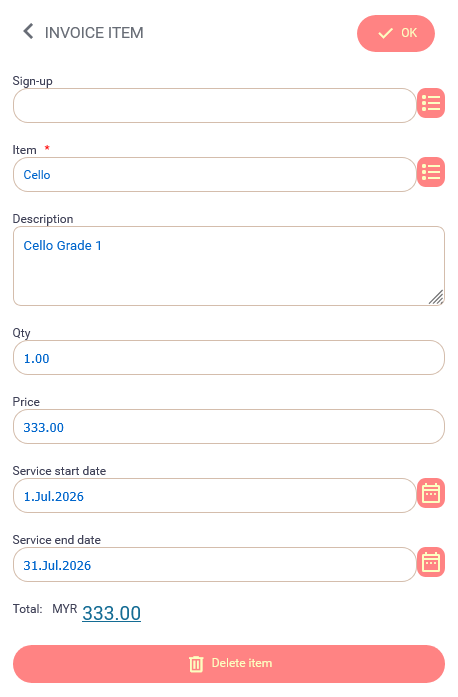
On the other hand, if you are keeping the course signed up by the student, the servicing period will be kept track automatically. For more information, please refer to: BitzButler Course and Signup: effortless student sign ups and course management
Q: Can I export an invoice in PDF format?
A: Yes. First, you open the invoice that you want to send. Choose 'Export to PDF' option from the more option menu (located at the top right). Then, the invoice in PDF will appear on the screen.
Q: Can I send an invoice through Whatsapp or any other messenger?
A: Yes. The PDF reader on your mobile device has a "forward" option/icon. Tap on it, choose the app that you want to use and then tap on the Send option.
Q: Can I duplicate an invoice?
A: Yes. Open an existing invoice, choose Duplicate from More Options (located at the top right) to duplicate the invoice. In the duplicated invoice, the customer and line items remain unchanged, the invoice date will be set to today.
Q: Can I issue LHDN e-invoice?
A: Yes. Open an existing invoice, choose Submit e-Invoice from More Options (located at the top right).
Notes: LHDN e-Invoice allows to be submitted once and you are not allowed to edit the e-invoice. Please double check the details before submission.
Q: Does your system track overdue invoices?
A: Yes. Every customer/student can have different credit term days and credit limits. You can find more information by tap on Contact option on the main screen, choose Manage Contact, open the contact that you want to edit and update the Term Days and Credit Limit fields.
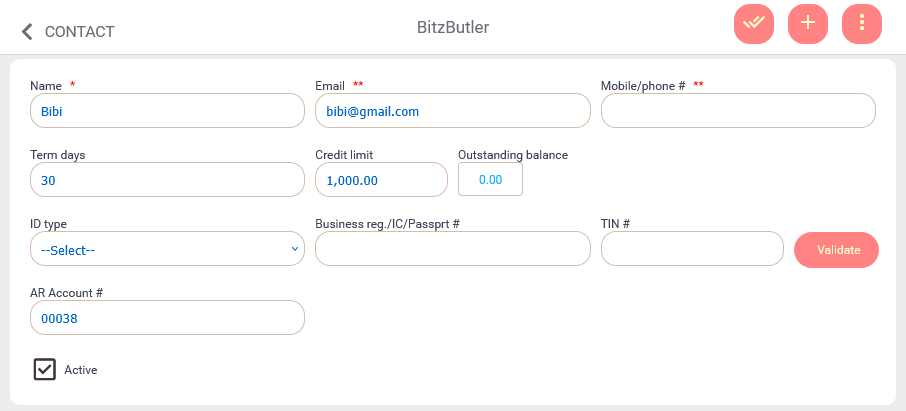
Once you have changed the Term Days and Credit Limit, the due date will be automatically set upon issuing a new invoice.
Notes: the changes on the Term Days will not affect the existing invoice.
Q: Does your system tracking the payment on the invoice?
A: Yes. Please refer to the following article:
- How BitzButler Accounting lets you issue sales receipts in under a minute
- Stay on top of cash flow: invoice payment tracking in BitzButler Accounting
Q: Do you have any sales reports?
A: Yes. We have sales reports.
-
For mobile phone user:
-
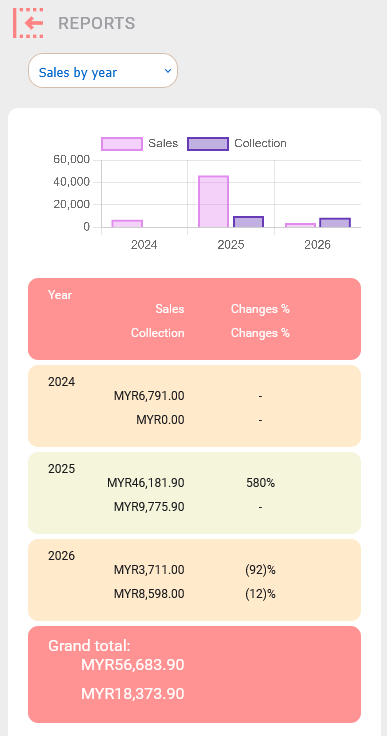
Tap on Reports option.
-
Choose any of the following view which contains the total sales and collection:
- Sales by month.
- Sales by year.
-
-
For desktop computer user:
-
Open the Accounting app → click Reports → choose Statistics \ Sales report. Then, you will find the following view types:
- Month to date sales.
- Year to date sales.
- Last 12 months sales.
- Last 5 years sales.
- Summary by year.
- Summary by month.
-
Q: Does your system has any report to show the overdue invoice?
A: Yes. For desktop computer user, open the Accounting app → click Reports and then choose any of the following reports:
- AR\Aging report - to view the due invoices grouped by customer.
- AR\Aging summary report - to find out the total due amount by due days for each customer.
- AR\Ledger report - to view the transaction for the selected customer.
Notes: unfortunately, these reports are not available for the mobile phone users.
Notes: AR is Accounts Receivable which is related to the sales and collection activities.
BitzButler Invoice
From the mobile login: open the app → Dashboard → Invoice. Your full student roster, class history, and preset rates are waiting—no typing required.
If you are using the browser on a desktop: click on the Invoice menu → then click on the plus icon (at the top right).
How to issue an invoice on a mobile device
Notes: the screen will be automatically
-
Tap "INVOICE".
-
Tap "New Invoice".
-
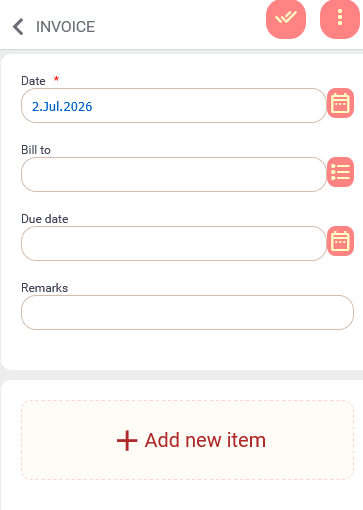
Key in the invoice date, bill to (i.e., the customer or student) and fill in the remarks. For the due date, it will be calculated automatically based on the term days that you have set in the customer profile.
-
Then, tap on the "Add new item" option.
-
Key in the line item details.
-
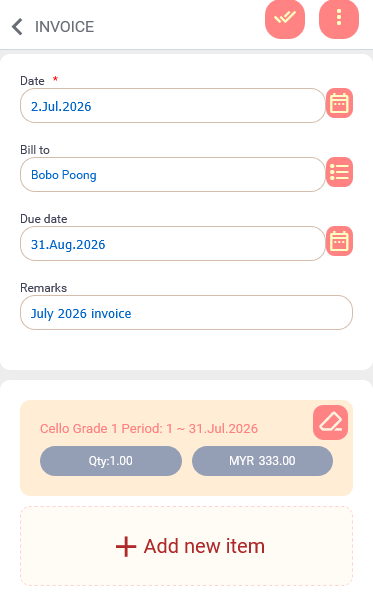
Tap the OK button after completing the line item information. Then, the line item popup will disappear. You should see a screen similar to the screen below:
-
Tap on the save option (the icon with double tick, located at the top right) to issue the invoice.
How to issue an invoice on desktop computer
The invoice entry in the BitzButler Accounting module is an advanced entry screen which has more fields and more information.
-
Open the Accounting app by tapping on Advanced → Accounting.
-
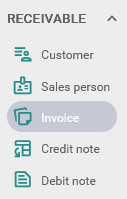
Click Receivable.
-
Click Invoice and the following screen will appear.
On the left hand side, it has many criteria which helps you in shortlisting the invoice.
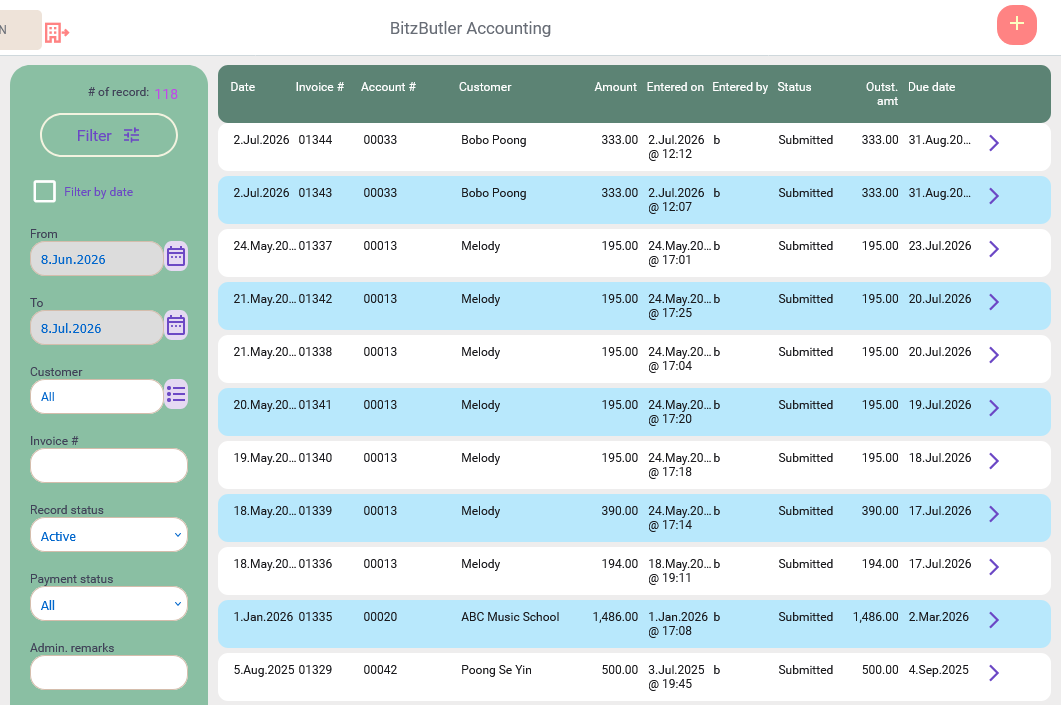
Notes: please ensure that you click on the Filter button after you have changed the criteria.
-
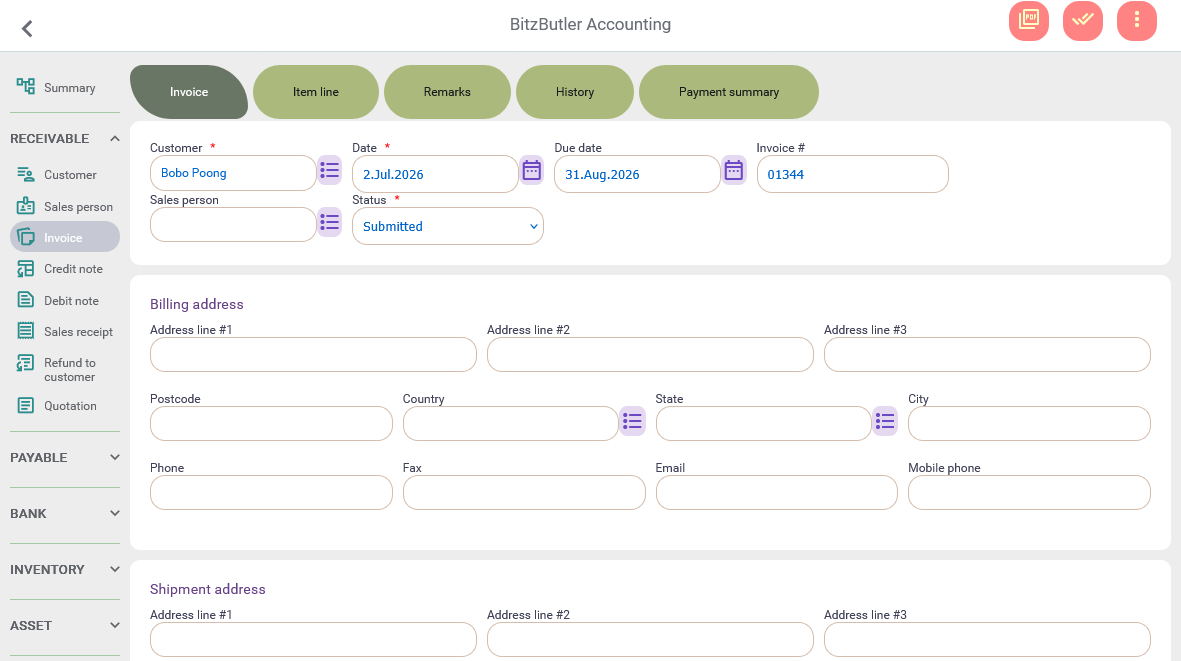
Click Add option (located at the top right) and then the following screen will appear.
-
Fill in the compulsory fields that have a red asterisk symbol.
-
Click on the Item Line tab and fill in the services or products that have been consumed by the customer.
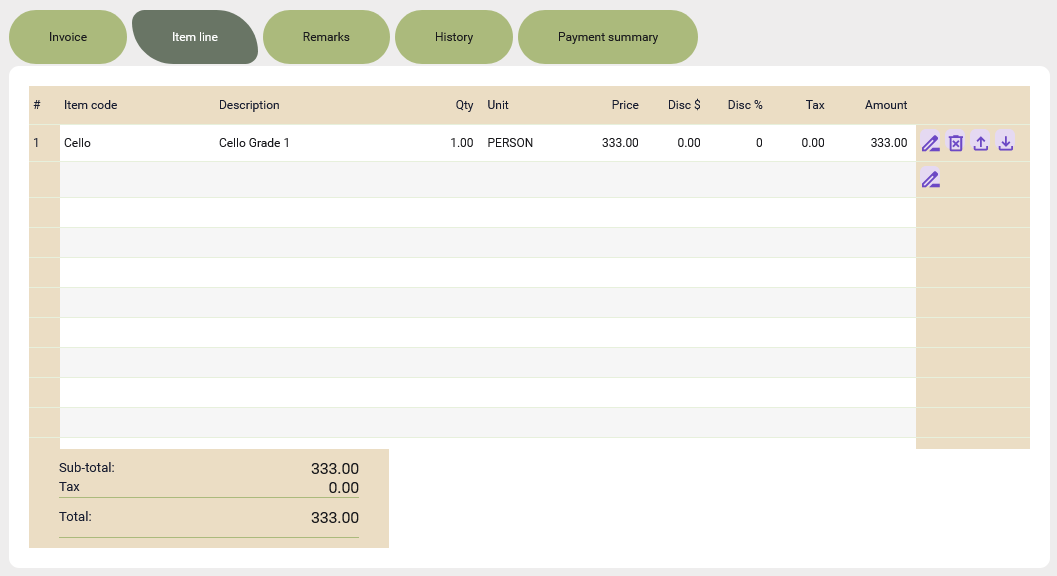
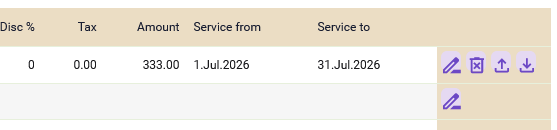
There are some columns on the right which might not be shown on the screen if your screen is not wide enough. Scroll to the right of the Item Line and you will see the 'Service from' and 'Service to' column.
-
Click on the PDF icon (located at the top right) to generate the invoice in PDF format. These two columns will appear on the invoice PDF format if there is value.
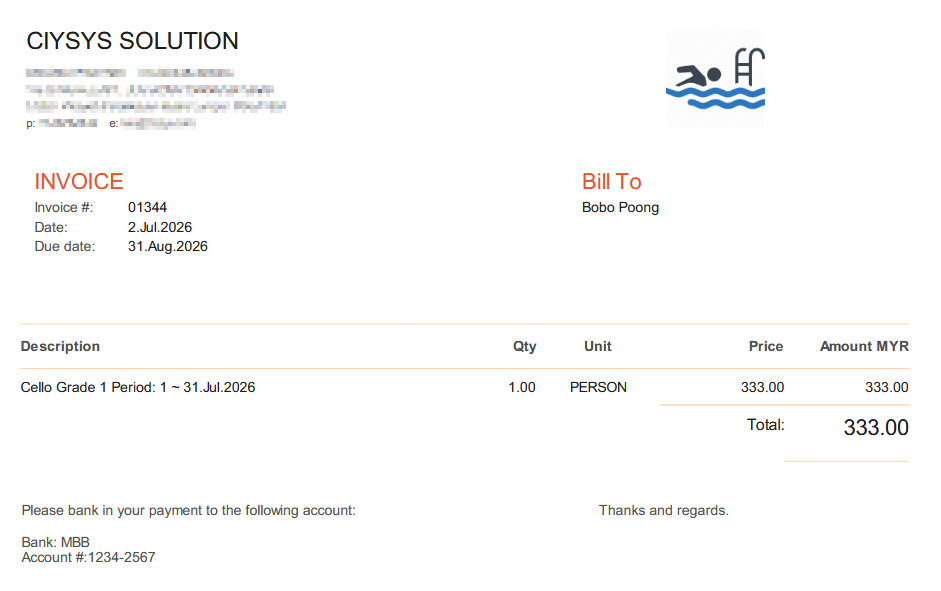
Notes: you may change the business logo by: tapping on Advanced → My business profile → Business logo.
-
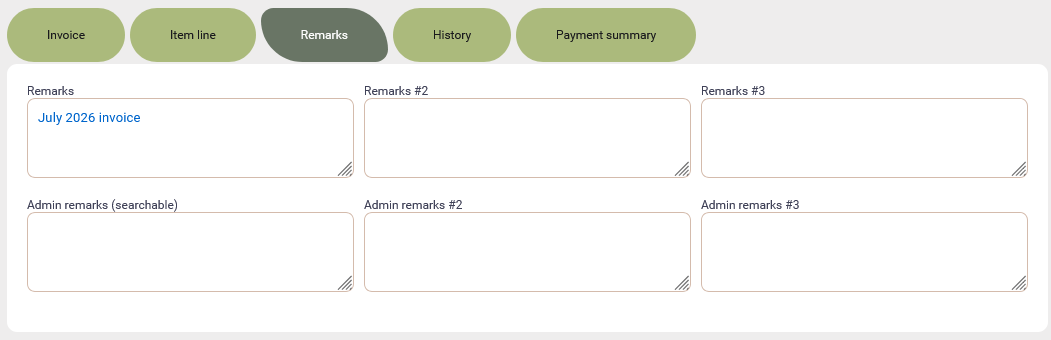
Switch to the Remarks tab. There are 6 remarks fields on this screen and you may have to decide the purpose of the remarks field. No hard rule.
-
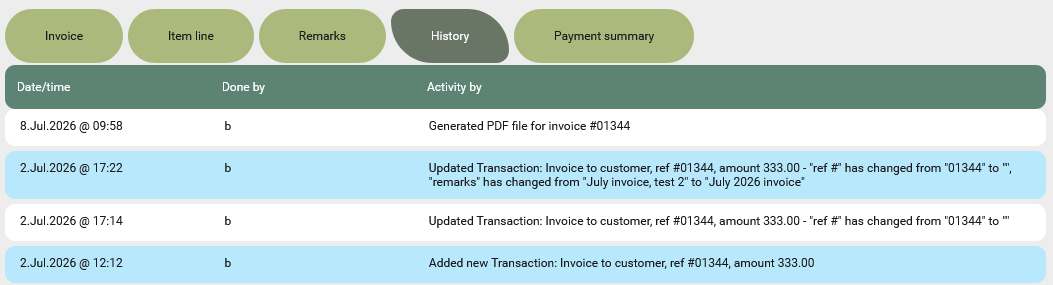
Click Save option (located at the top right) once you have done with the data entry. Then, the History and Payment summary tab will appear after successfully saving the data.
In the History tab, it has all the information about when the invoice was issued and the changes made on this invoice.
In the Payment summary tab, it shows the invoice issuing date and the payment date. This tab is particularly useful if your customer is making multiple partial payments. You can easily spot how long and how many payments it takes to fully settle an invoice.

Summary
In short, our BitzButler Invoice makes a smart 24/7 billing assistant. Log in tonight, send one test invoice, and watch the payments come in — so you can focus on your business, not paperwork. Ready to ditch the paper chaos?
Start issuing your Invoices for Free. No credit card needed to sign up.
#Tutorial | #CRM | #AR | #Accounting | #Blog listing
